START WITH AN EMPTY SLOT
 Press
Give it a home.
Copy something on your Mac, then press an empty slot. Your clip stays there, ready for next time.
 Clip Shelf
A CLIPBOARD SHELF FOR YOUR STREAM DECK
The reply you always type. The image you keep looking for. The files you send again and again. Give them a key of their own.
Made for Mac. Kept on your Mac.
01 / A SMALL GESTURE
One action. Two gestures. A little less friction in the things you do every day.
Press
Copy something on your Mac, then press an empty slot. Your clip stays there, ready for next time.
 Press
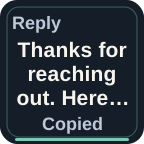
Press to put the saved content back on your clipboard. Paste wherever you need it, when you are ready.
 Hold 1 second + release
Copy something else. Hold the key for one second, then release to replace its saved content.
You choose what to save. Nothing is monitored or pasted automatically. Examples show actual key states.
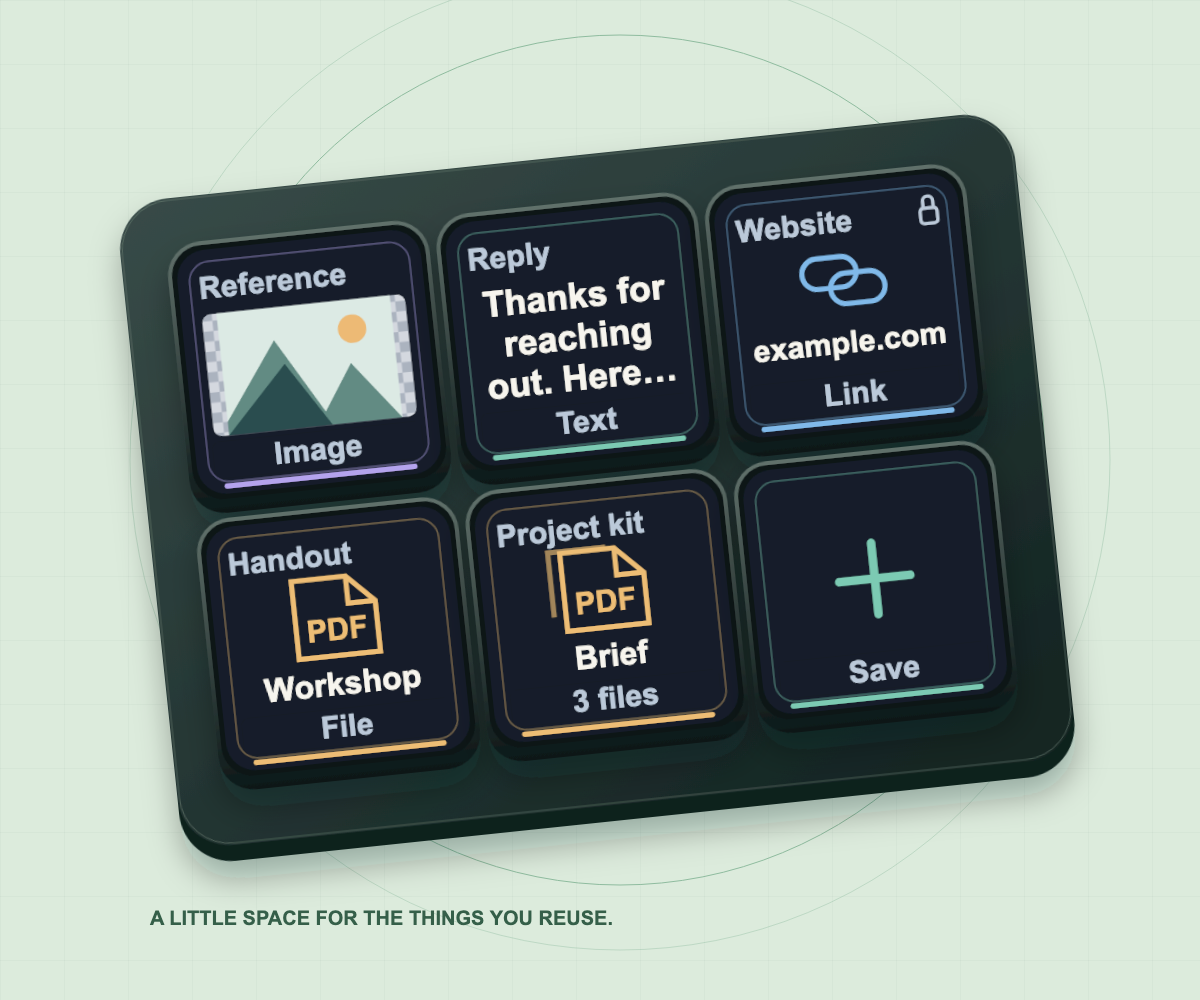
02 / THE THINGS WORTH KEEPING
A visual home for the small things that keep your day moving.
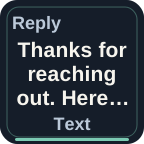
A thoughtful response, an introduction or a formatted paragraph. Ready without retyping.
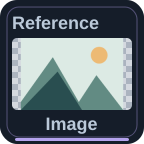
A reference, a screenshot or a logo. Image thumbnails help you reach for the right one.
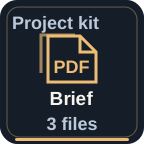
Keep real copies of regular files together. Moving the originals will not break your saved kit.
03 / MAKE IT FEEL LIKE YOURS
Choose an appearance for each key. Add a label, show just the label, or let the image take the space.
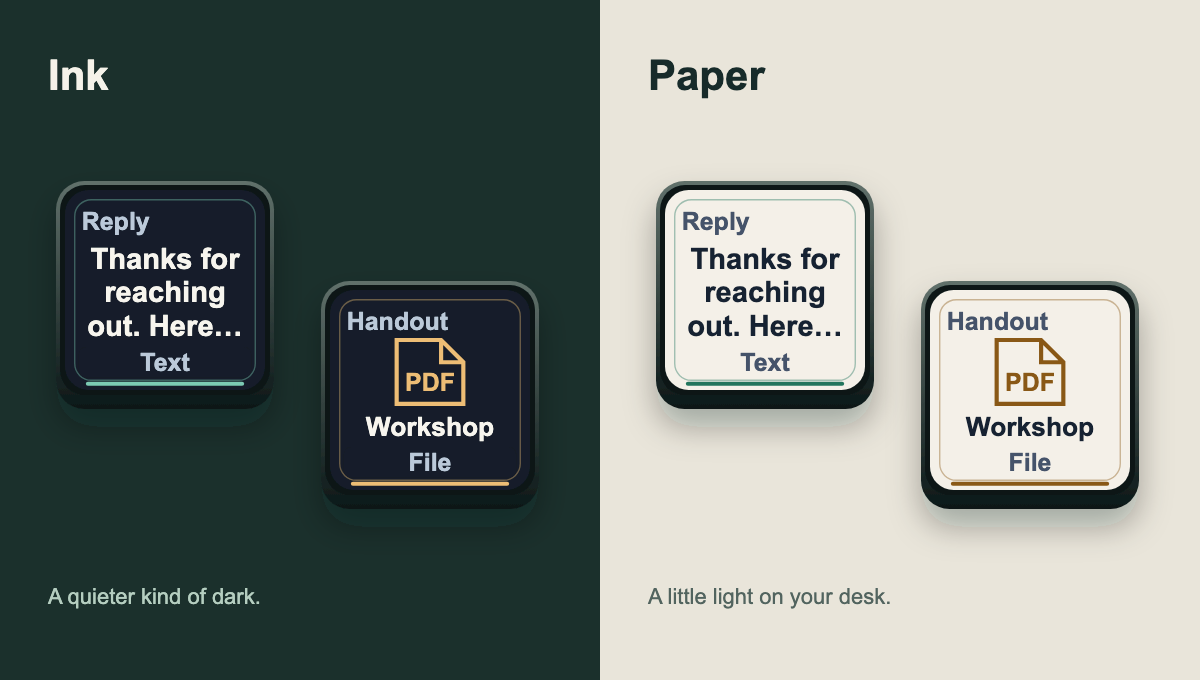
Use a name that makes sense to you. Labels follow the saved slot.
Protect a slot from replacement or deletion. You can still copy it.
Reuse the same saved content across your Stream Deck layouts.
04 / ROOM TO WORK
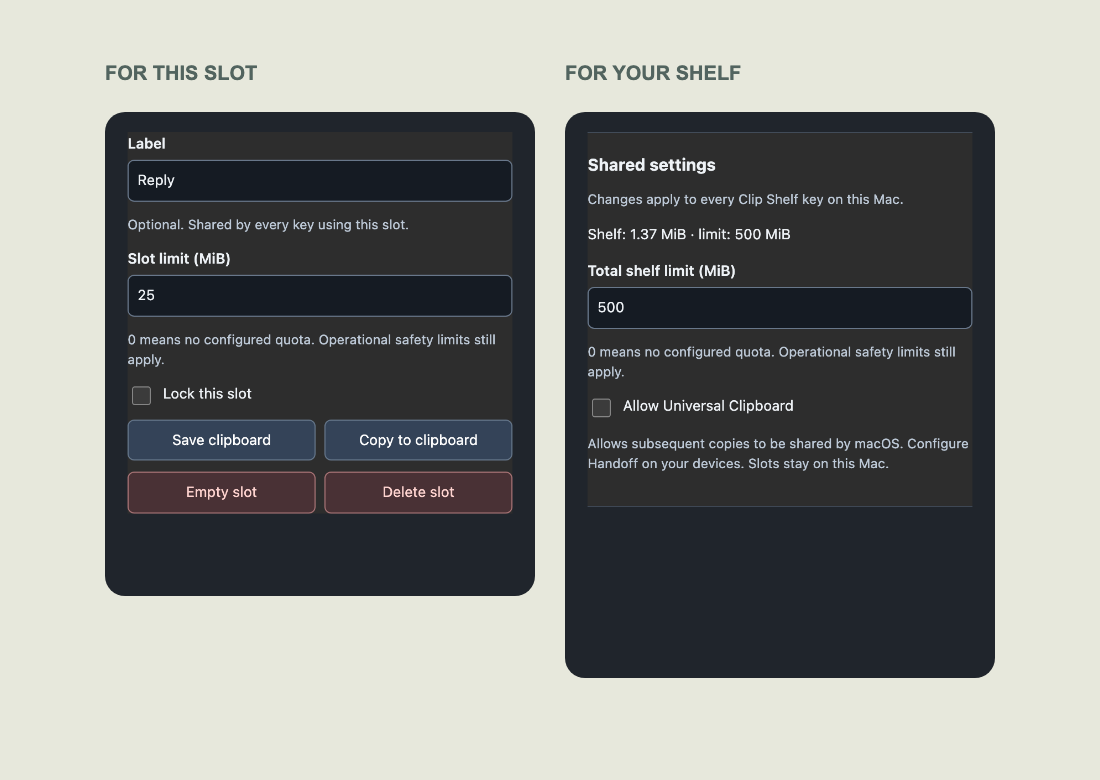
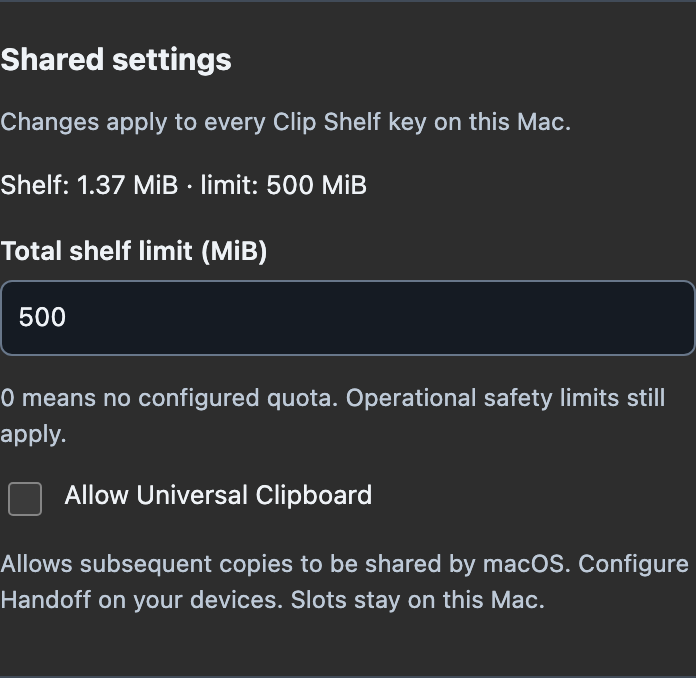
Manage your saved slots and shared preferences from any Clip Shelf key.
Adjust either quota, or set it to 0 for no configured quota. Lowering a limit never deletes existing clips. Technical safety limits remain.
What counts towards a quota?FOR THIS SLOT
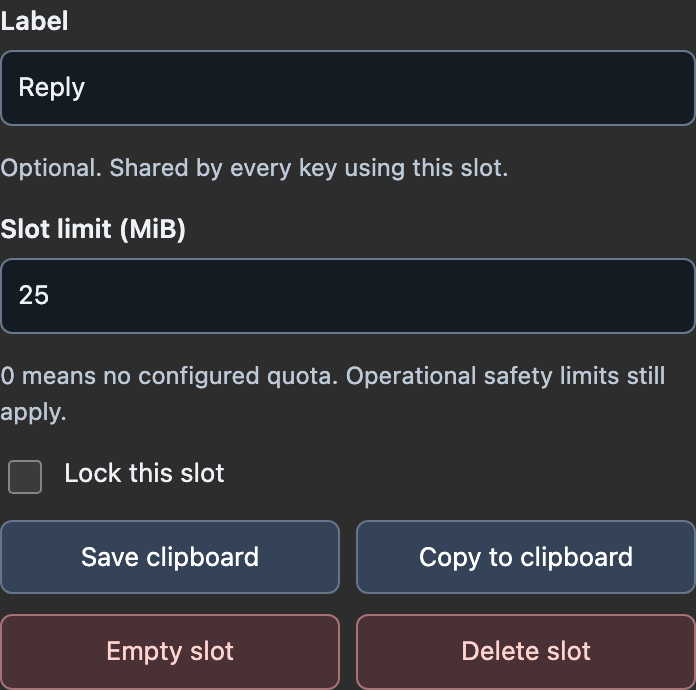
FOR YOUR SHELF
LOCAL BY DESIGN
Your clips stay on this Mac, across restarts. No plugin account or backend. Local storage is not an encrypted vault.
SHARING IS YOUR CHOICE
Turn on Universal Clipboard in the shared settings to let macOS share subsequent copies with your configured Apple devices. Handoff setup and delivery are managed by Apple.
A PLACE TO START
Built for Stream Deck on Apple Silicon Macs. The interface follows Stream Deck’s language in English and Spanish.
Contact the author ↗GOOD TO KNOW
A few answers before you fill your shelf.
Text, supported rich-text representations, images, links and regular files. Folders, promised files and app-private references are not supported. An unsupported capture leaves the previous clip intact.
Choose Empty slot in the key’s settings and confirm. The slot’s preferences stay. Delete slot removes the slot as well. Neither operation clears your current clipboard or deletes original files. Unlock a locked slot first.
The saved slot remains in the inspector’s list. Assign it to another key or delete it there. Several keys can share the same slot.
All saved clipboard representations and file bytes. Replacing a clip subtracts its old size. Lowering a quota never deletes existing content. Metadata, previews and the last successful file export use additional space.
No. It makes the currently restored clip eligible for Apple’s sharing mechanism. Configure your nearby devices with the same Apple Account, Handoff, Wi-Fi and Bluetooth. Format support and delivery are managed by Apple.