Know what’s playing.
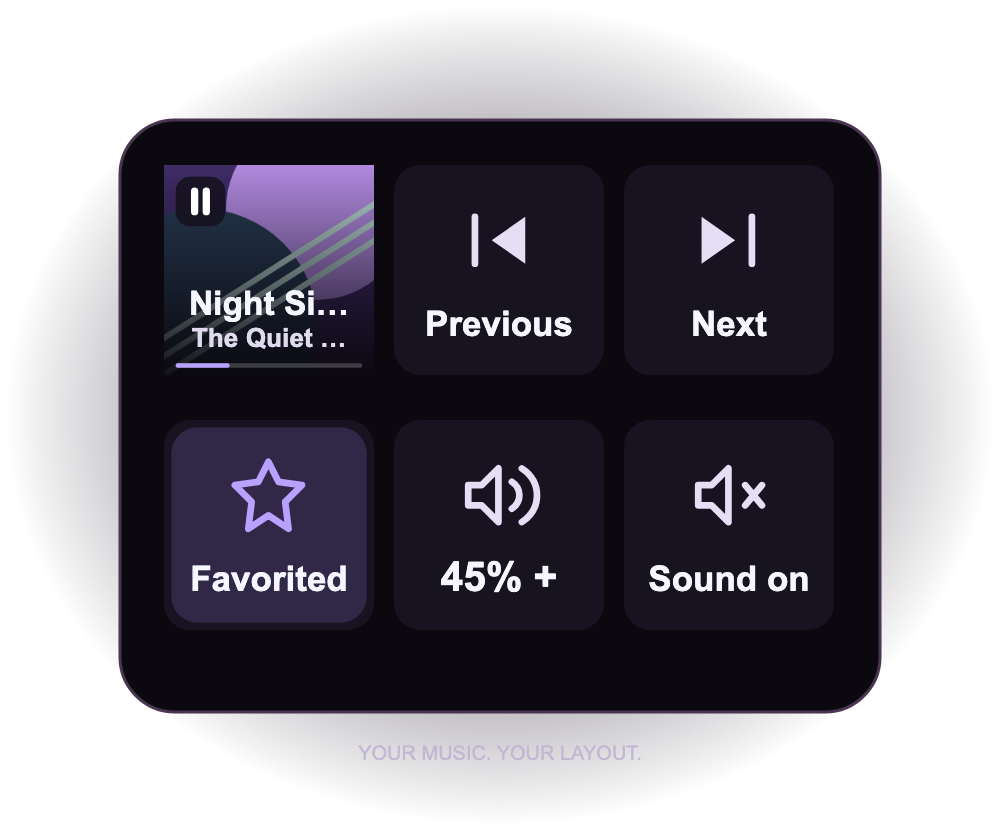
Album artwork, song, artist and progress on one key. Press to play or pause; the display follows changes made in Music too.
 Music
Control
Music
Control
APPLE MUSIC · AT YOUR FINGERTIPS
Keep the song going without leaving your flow. Playback, artwork, favorites and volume for Apple Music on your Mac.
Make room for musicLocal controls. Original design. No extra account.
LESS SWITCHING. MORE LISTENING.
Album artwork, song, artist and progress on one key. Press to play or pause; the display follows changes made in Music too.
Skip songs, mark favorites, toggle shuffle and cycle repeat. Seek within a song or start it again with a dedicated key. Save a song or playlist from your Music library to its own key for one-press playback.
Adjust or mute Music without changing system volume. On Stream Deck+, turn a dial for volume, press to mute, and touch to play or pause.
ONE PRESS. BACK IN THE FLOW.
Your editor, your work, your conversation. Music Control puts the everyday controls on your desk.
The preview uses illustrative data and does not connect to Music.
 Illustrative playback
FROM INSTALL TO FIRST SONG
Open the Music Control .streamDeckPlugin installer
with the Stream Deck app.
Drag actions onto your keys or put Volume on a dial. Most controls need no configuration. For Song and Playlist, search your library in the inspector and select a result to save it.
Press Play / Pause and allow Stream Deck to control Music when macOS asks. Choose a song in Music if there is nothing to resume.
Designed for Apple Music on macOS Tahoe and later.
A LITTLE HELP
Open System Settings → Privacy & Security → Automation and allow Stream Deck to control Music. Then press a control again. If no request has appeared yet, press Play / Pause first.
Some songs and streams do not expose artwork to local automation. Music Control shows its own waveform instead and keeps playback controls available.
Select a playable song in Music, or configure a Song or Playlist key to start a saved item from your library.
Search your Music library in the inspector and choose a result. A press starts that saved item using Music’s shuffle and repeat settings. Search does not start playback or change your library. Songs need at least two search characters; refine your search if more matches are available.
These actions use stable library IDs. If an item is deleted or the profile moves to a different library, select it again. Artwork depends on what Music exposes; an original icon is used when it is unavailable.
Music determines which operations a track supports. Live streams may have no seekable duration, and some content may not support favorites.
It asks Music to go to the previous track. Use Restart Track to return to the start of the current song.