List Counter
A clear count of pending tasks. Choose today, overdue, both, no date, flagged, or everything still to do.
Press to open the list.
A LITTLE MORE HEADSPACE
Give your everyday lists a place on your Stream Deck. See what needs attention, open the right task, and capture the things you do often.
Meet your four keys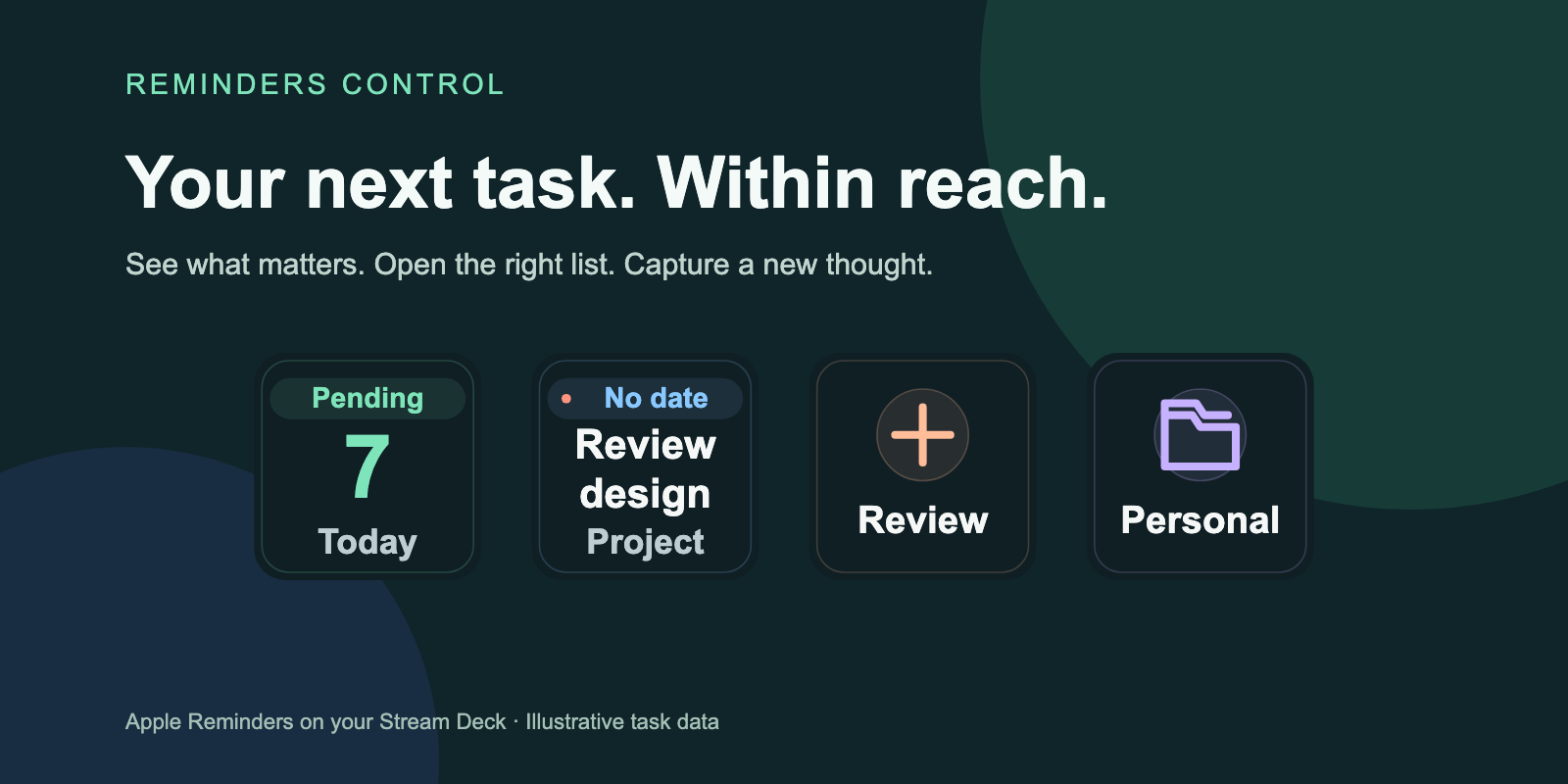
Actual key rendering with illustrative task data.
FOUR KEYS. YOUR OWN ARRANGEMENT.
A clear count of pending tasks. Choose today, overdue, both, no date, flagged, or everything still to do.
Press to open the list.
One task at a time, ordered by due date or priority. See its title and due date right on your key.
Press to open that task.
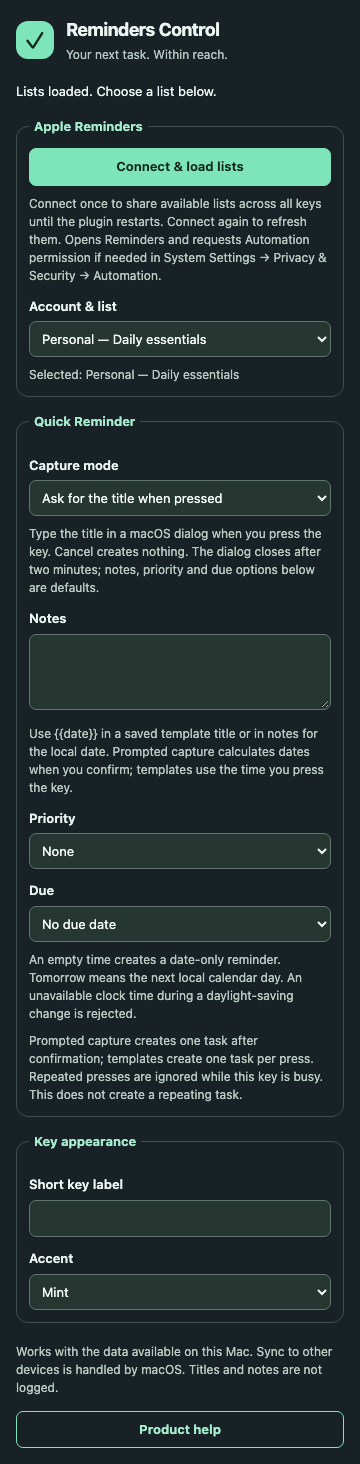
Press, type a title and confirm in a macOS dialog. Set your list, notes, priority and due options once. Use saved templates for tasks you create often.
Press to capture a reminder.
Your shopping list, work checklist or personal plans. A quiet shortcut with its own label and color.
Press to go straight there.
SET IT ONCE. KEEP IT CLOSE.
Built for Apple Reminders on macOS. The interface follows Stream Deck's language, with English and Spanish included.
THOUGHTFULLY LOCAL
Your tasks stay in Apple Reminders. Complete and edit them there; use your keys for quick access and capture. macOS handles synchronization with your other devices.
No additional sign-in. No telemetry. Titles and notes are not logged. Background counts update while the keys are visible and Reminders is running.
List Counter, Next Reminder and Open List read or open existing items. Quick Reminder creates a task after you confirm its title, or immediately when using a saved template. Completing, deleting and rescheduling stay in Apple Reminders.
Today counts pending tasks due on the current local day. Choose Today + overdue to include older unfinished tasks too. All counts and next-task ordering use calendar days: overdue means before today, even for tasks with a time. Quick Reminder can still create tasks with a specific time.
Background queries show that the app is closed. A deliberate key press or Connect & load lists can open it. Background checks do not launch the app or request permission.
Choose regular lists exposed by Apple's automation interface. Smart views such as Today are not selectable: the Today counter filter applies to the chosen regular list. Sections, tags and subtask hierarchy are not managed by the plugin.