WINDOW LAYOUTS FOR MAGNET / SETUP GUIDE
Your windows.
Your layout.
A spatial set of 19 native hotkey actions for Magnet on macOS. All artwork is included in each profile.
On this page
1. Prepare your Mac
- Install Magnet and the Stream Deck app. Use Stream Deck 7.6 or later and a macOS version supported by both apps. This command set targets Magnet 3.0.7.
- Launch Magnet and follow its Accessibility permission instructions. Allow Stream Deck to send hotkeys when macOS requests the corresponding permission.
- In Magnet settings, enable each shortcut below and make it match exactly. Importing this profile does not change Magnet settings. Control, Option and Command are different modifier keys.
2. Import your profile
- Extract the downloaded ZIP. Open Stream Deck and select the device you want to configure.
- Open Preferences → Profiles, use the profile menu to Import, and choose the matching
.streamDeckProfilefrom the Profiles folder. - Select the imported profile in Stream Deck. Keep profile selection manual: assigning it only to Magnet would hide it when working in other apps.
- Focus a resizable application window, then press a layout key. The profile targets the active window, not all windows at once.
| Device | Columns × rows | Pages | File |
|---|---|---|---|
| Stream Deck Mini | 3 × 2 | 6 | Window Layouts for Magnet - Stream Deck Mini - macOS.streamDeckProfile |
| Stream Deck Neo | 4 × 2 | 4 | Window Layouts for Magnet - Stream Deck Neo - macOS.streamDeckProfile |
| Stream Deck + | 4 × 2 | 4 | Window Layouts for Magnet - Stream Deck + - macOS.streamDeckProfile |
| Stream Deck Original | 5 × 3 | 2 | Window Layouts for Magnet - Stream Deck Original - macOS.streamDeckProfile |
| Stream Deck MK.2 | 5 × 3 | 2 | Window Layouts for Magnet - Stream Deck MK.2 - macOS.streamDeckProfile |
| Stream Deck XL | 8 × 4 | 1 | Window Layouts for Magnet - Stream Deck XL - macOS.streamDeckProfile |
| Stream Deck + XL | 9 × 4 | 1 | Window Layouts for Magnet - Stream Deck + XL - macOS.streamDeckProfile |
| Galleon 100 SD | 3 × 4 | 2 | Window Layouts for Magnet - Galleon 100 SD - macOS.streamDeckProfile |
All controls are on keys. The +, + XL and Galleon variants do not assign dials or touch-strip actions. Neo also has on-key navigation.
Choose a return profile on 15-key decks
Original and MK.2 include a PROFILE key in the bottom-right corner of both pages. It uses Stream Deck's native Switch Profile action. After import, select this key in the Stream Deck editor and choose your destination device/profile in its settings. Repeat on the other page: these are two independent buttons. The bundle leaves the destination unset because your profiles belong to your installation.
Stream Deck Mobile and Virtual Stream Deck
Use a matching keypad grid: Mini for 3 × 2, Neo for 4 × 2, Original for 5 × 3, or XL for 8 × 4. Select your Mobile or Virtual device before importing. Configure the canvas to match first; profiles do not automatically scale. These use the corresponding grid file, not a separate Mobile or Virtual file. Availability and configurable sizes depend on your Stream Deck software and device.
For other custom grids, place a matching layout inside a larger canvas and check every key after import. This bundle does not claim support for every arbitrary grid. Stream Deck Studio uses Companion and cannot use these app profiles. Screenless Pedal and Corsair G-key devices are outside this visual keypad collection.
3. Match the shortcuts
Control + Option is shared by all commands. Display moves add Command. Restore uses the Mac Backspace/Delete key, not Forward Delete.
| Icon | Magnet command | Shortcut |
|---|---|---|
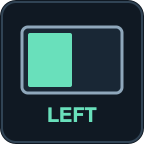 | Left | Control + Option + Left Arrow |
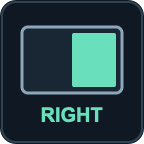 | Right | Control + Option + Right Arrow |
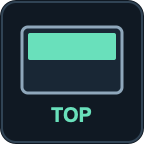 | Top | Control + Option + Up Arrow |
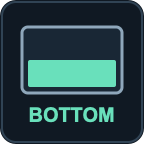 | Bottom | Control + Option + Down Arrow |
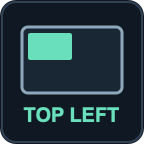 | Top Left | Control + Option + U |
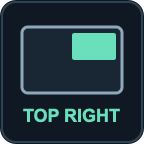 | Top Right | Control + Option + I |
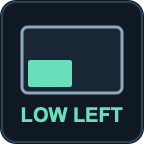 | Bottom Left | Control + Option + J |
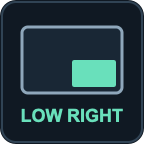 | Bottom Right | Control + Option + K |
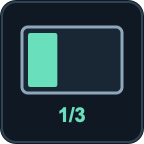 | Left Third | Control + Option + D |
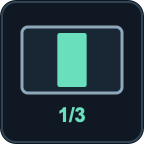 | Center Third | Control + Option + F |
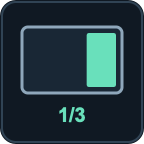 | Right Third | Control + Option + G |
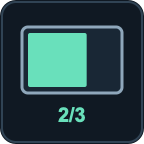 | Left Two Thirds | Control + Option + E |
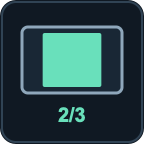 | Center Two Thirds | Control + Option + R |
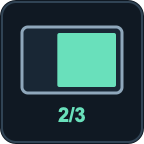 | Right Two Thirds | Control + Option + T |
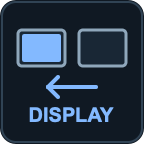 | Previous Display | Control + Option + Command + Left Arrow |
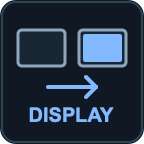 | Next Display | Control + Option + Command + Right Arrow |
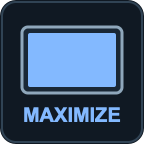 | Maximize | Control + Option + Return |
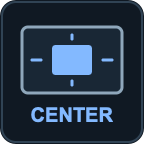 | Center | Control + Option + C |
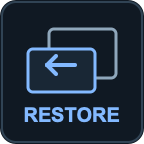 | Restore | Control + Option + Backspace |
Find your way by position
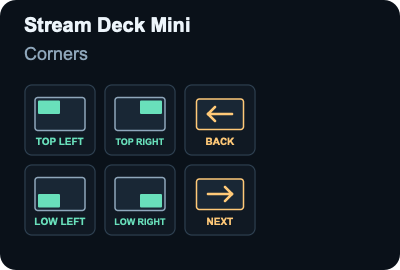
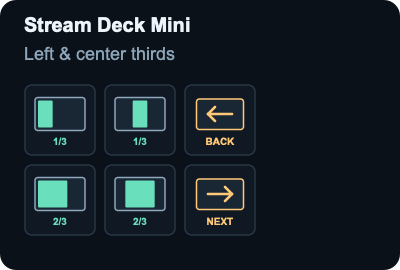
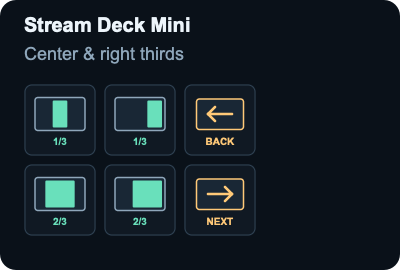
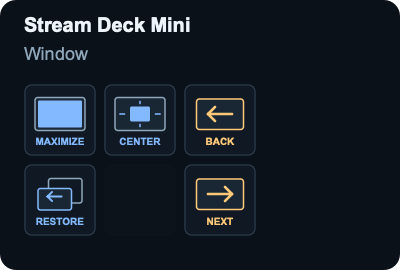
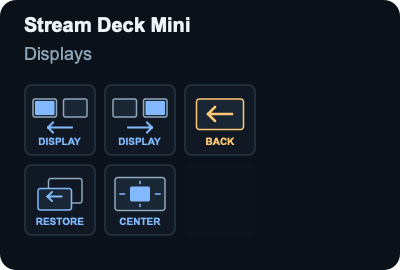
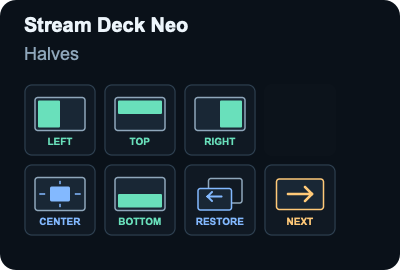
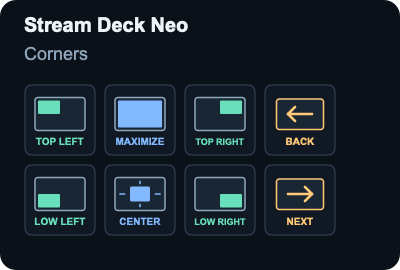
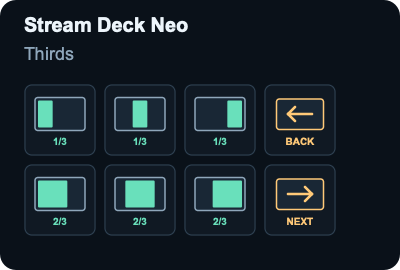
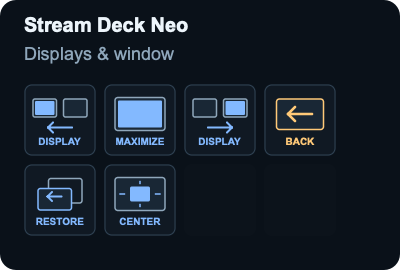
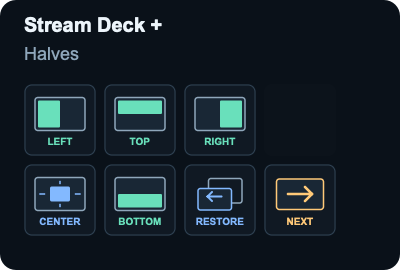
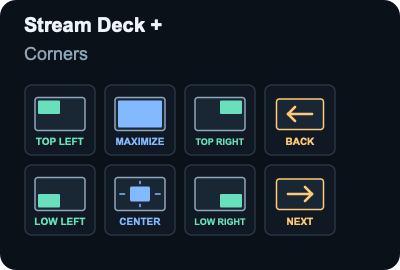
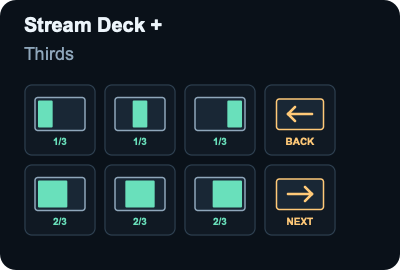
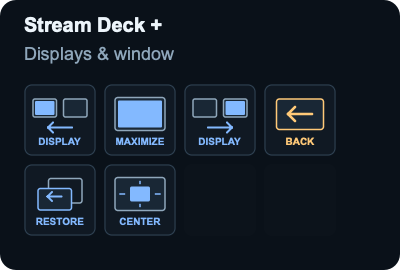
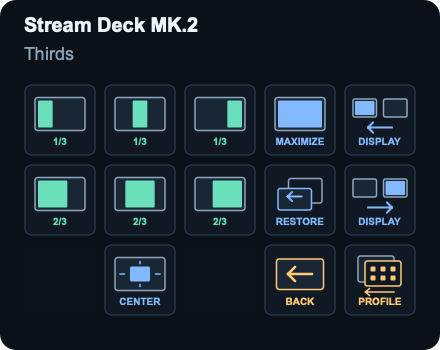
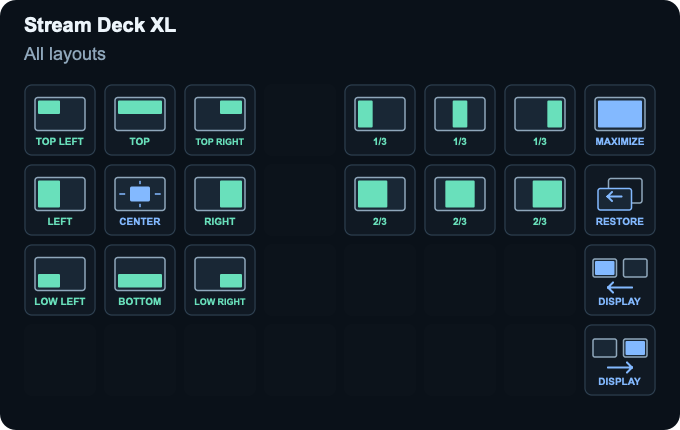
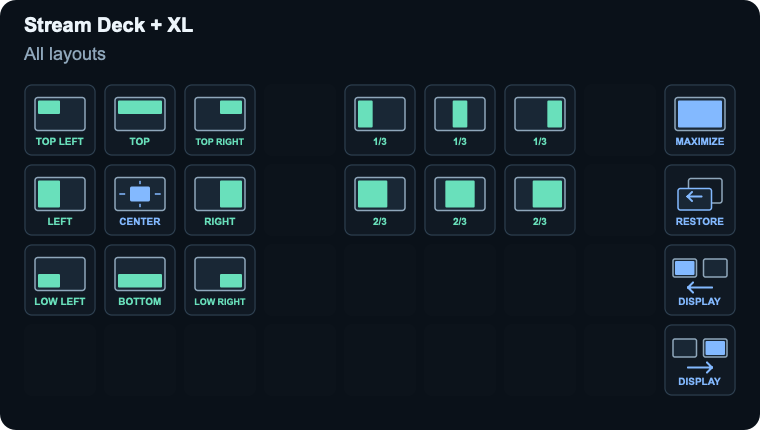
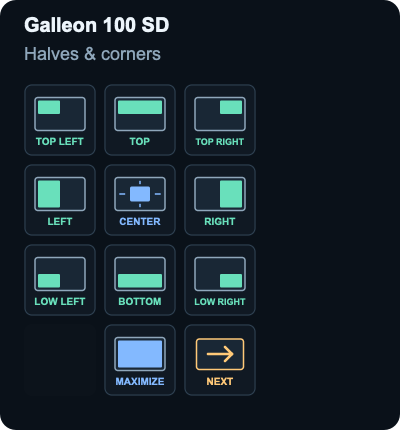
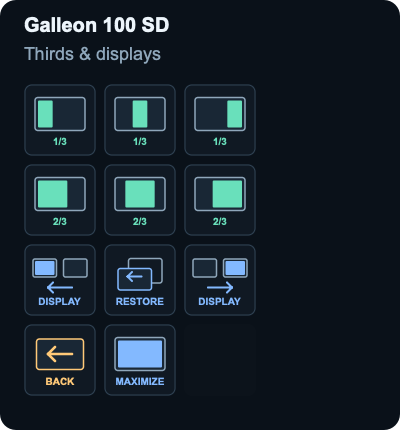
Mint icons fill the destination area. Blue icons center, restore, maximize or move between displays. Amber arrows change pages. Blank keys preserve space between groups. Mini uses its right column for navigation; Neo and + do the same. On 15-key decks the navigation key stays in the fourth column, bottom row. Wide decks show every command on one page.
Stream Deck Mini — 6 page(s)
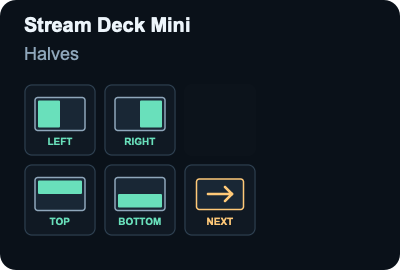
Stream Deck Neo — 4 page(s)
Stream Deck + — 4 page(s)
Stream Deck Original — 2 page(s)
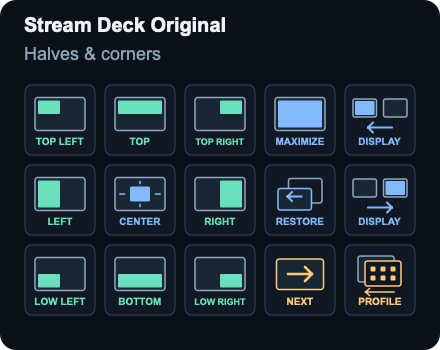
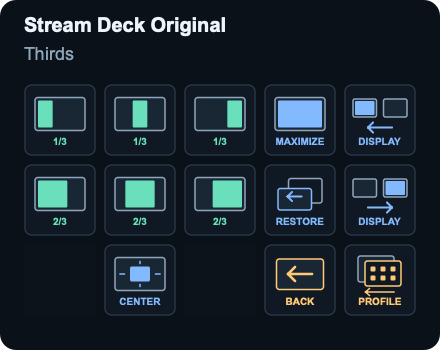
Stream Deck MK.2 — 2 page(s)
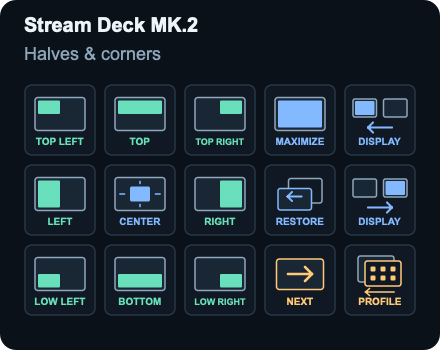
Stream Deck XL — 1 page(s)
Stream Deck + XL — 1 page(s)
Galleon 100 SD — 2 page(s)
If something does not move
- Try the same shortcut on the keyboard. If it also fails there, check Magnet is running, the shortcut is enabled, and the current app is not ignored by Magnet.
- If the keyboard works but the key does not, check the Stream Deck action and macOS permissions. Test letter shortcuts with your keyboard input source; layouts such as AZERTY or Dvorak may need the shortcuts re-recorded in both apps.
- Some windows are not resizable or have minimum sizes. Magnet cannot force them smaller.
- Display moves need another connected display. They do not move windows between macOS Spaces.
- Maximize fills the available screen area; it is not macOS full-screen mode.
Portrait displays: Magnet may interpret third commands as top, center and bottom rather than left, center and right. These icons describe a landscape display and do not change dynamically. Verify the commands before using the profile with a portrait monitor.
Updates and privacy
Profiles do not auto-update. Import an updated profile separately and preserve your customized version before replacing it. The profiles contain native hotkeys, page navigation, configurable profile switches and icons: no scripts, network calls or telemetry. Magnet and Stream Deck retain their own settings and privacy behavior.
This is an independent profile collection, not an official Magnet or Elgato product. Magnet and Stream Deck belong to their respective owners.